View Your Leads
MY LEADS Tab
Leadgen Role
Note, The corresponding screen shot is a leadgen’s instance, Producers will have a different view inside the MY LEADS tab.
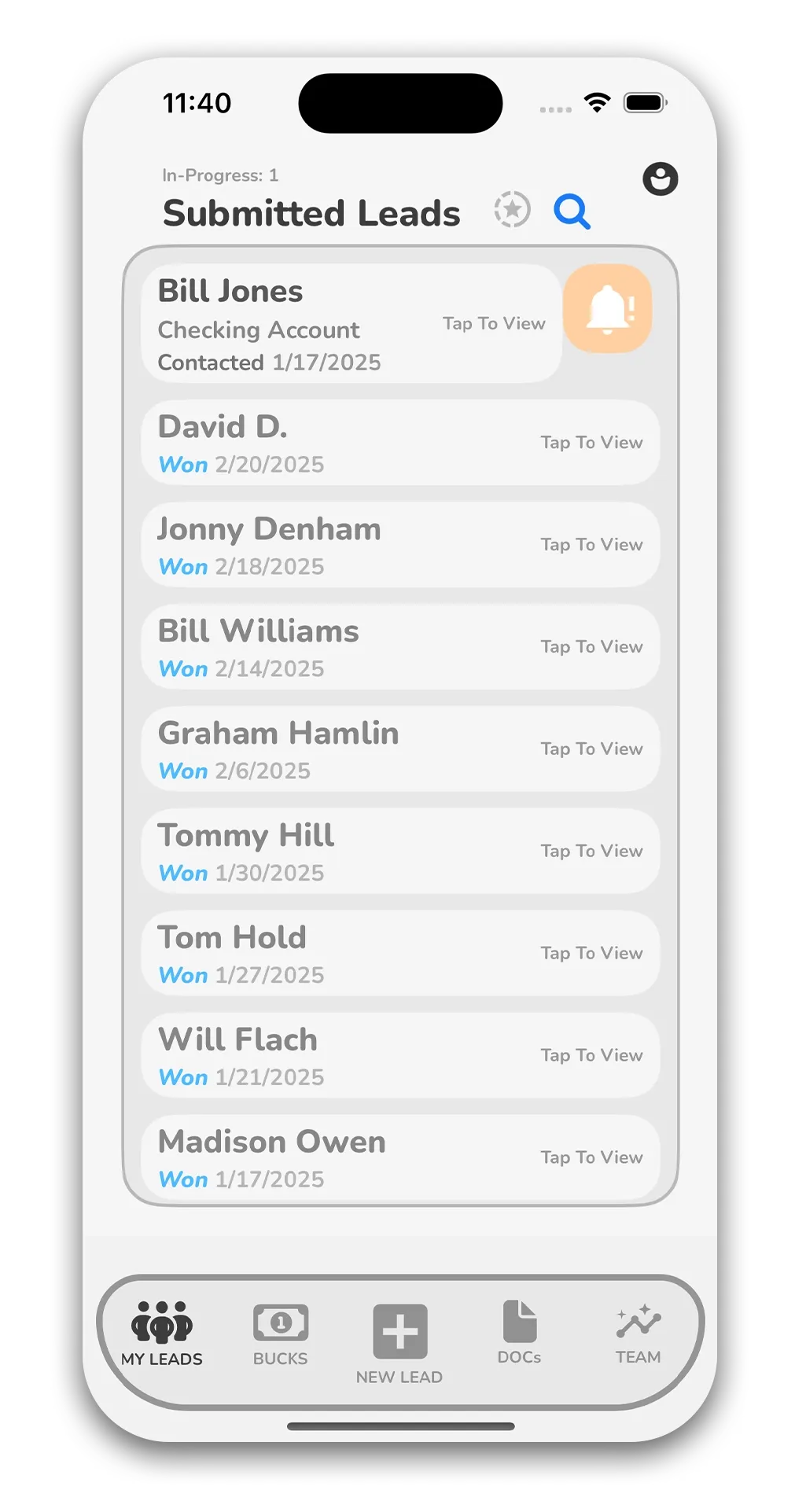
After logging in, you’ll land on the “My Leads” tab, where you can view all current and past leads. Each lead card shows key details, including account info and status.
- Filter leads: Tap the star icon to show only in-progress leads.
- Reminders: A yellow bell means a lead hasn’t been updated in over a day. Tap it to send a reminder.
- Lead details: Tap a lead card to view more info or contact the assigned producer.
Producer Role
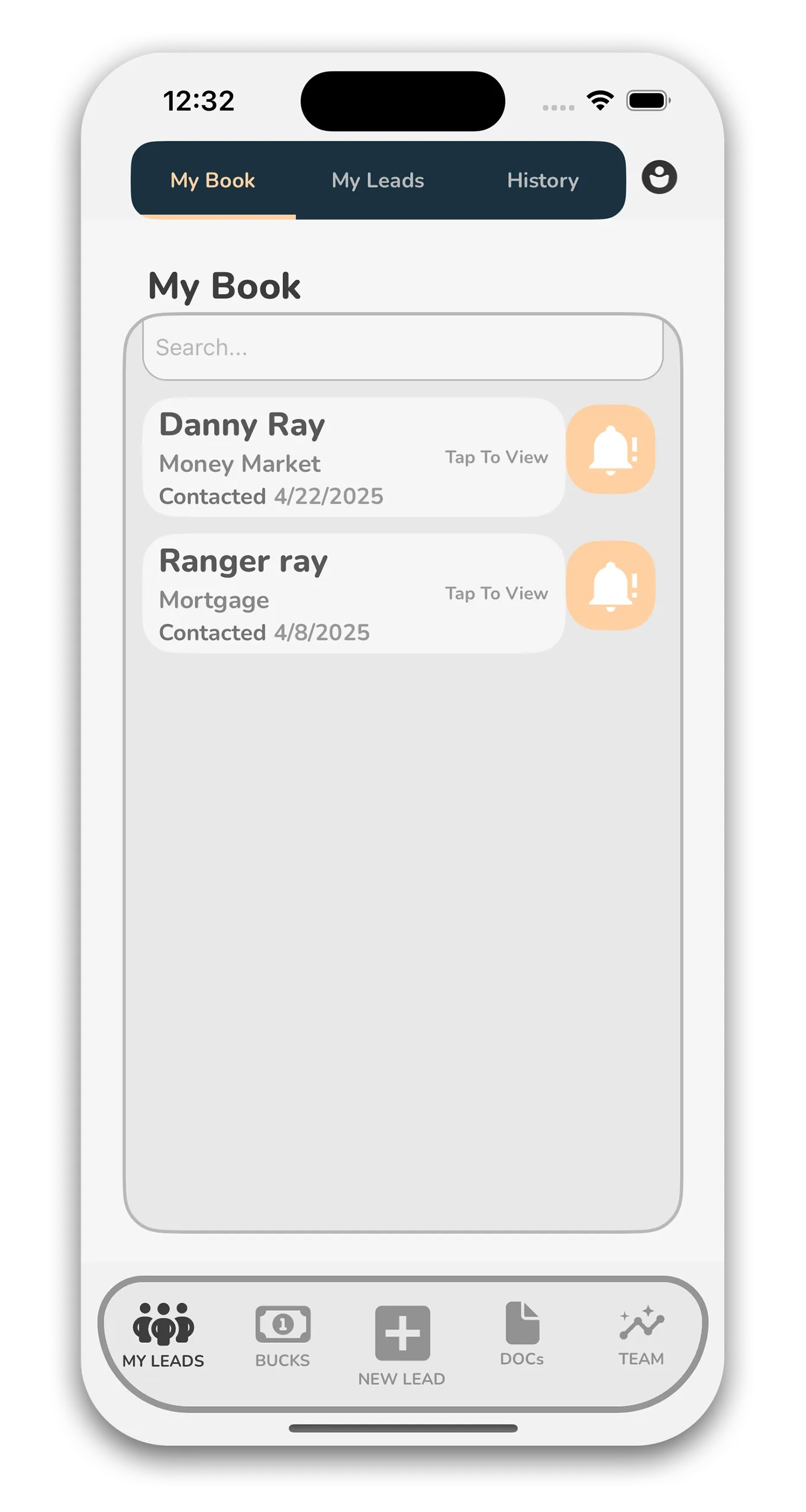
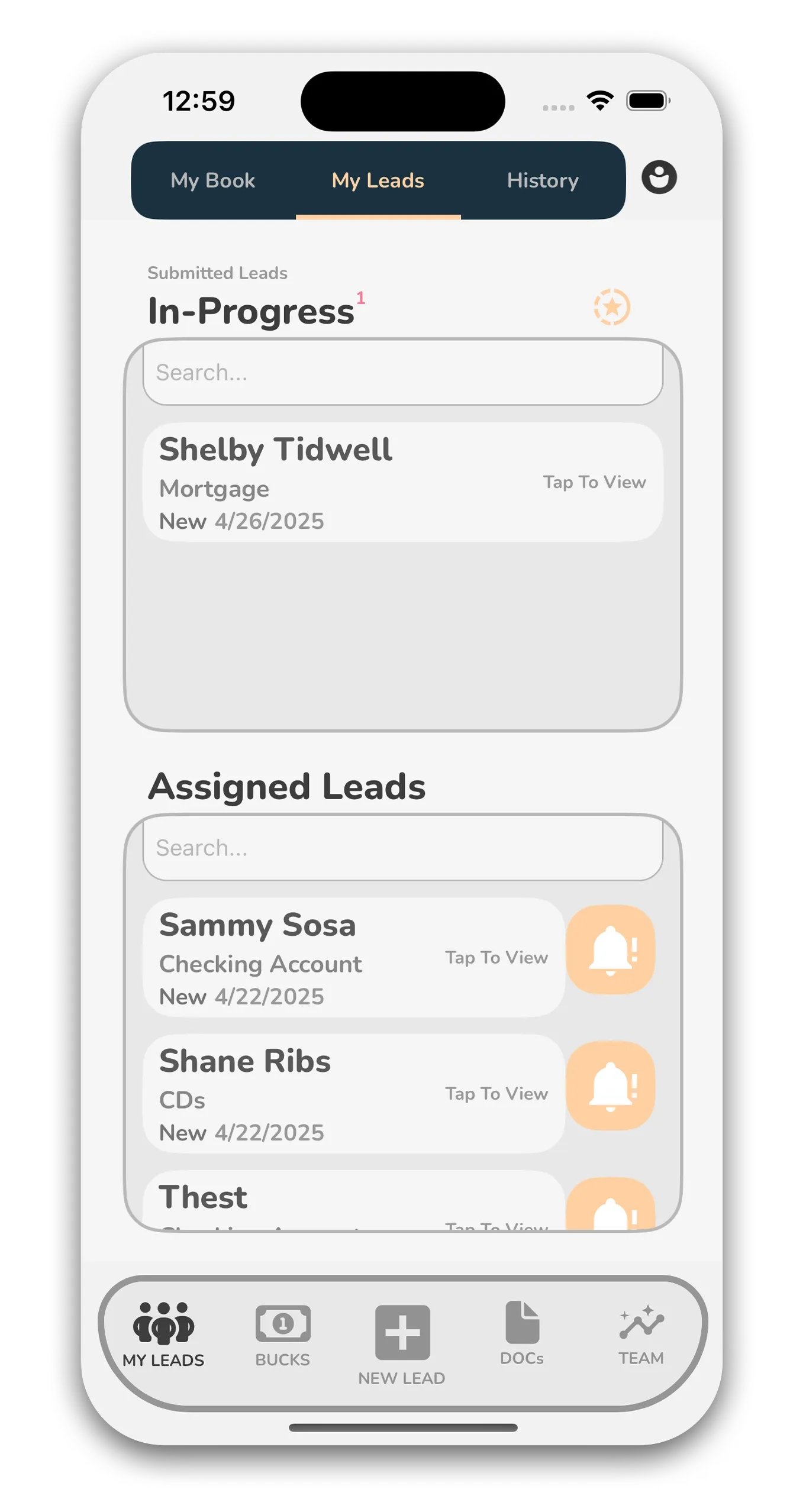
After logging in, you’ll land on the “My Leads” tab, where you can view:
- Submitted Leads: Leads you have sent to other Producers.
- Assigned Leads: Leads sent to you by a lead generator.
- My Book: Leads you have assinged to yourself to work on.
Key Actions:
- Filter leads: Tap the star icon to show only in-progress leads.
- Send reminders: A yellow bell means a lead hasn’t been updated in over a day. Tap it to notify the producer.
- View details: Tap a lead card to see more info or contact the producer.
- Update assigned leads: Tap an assigned lead and follow the status prompts.
- Update My Book Lead: Tap a lead inside your My Book list to add notes and update the status of your lead.
Lead Detail Screen
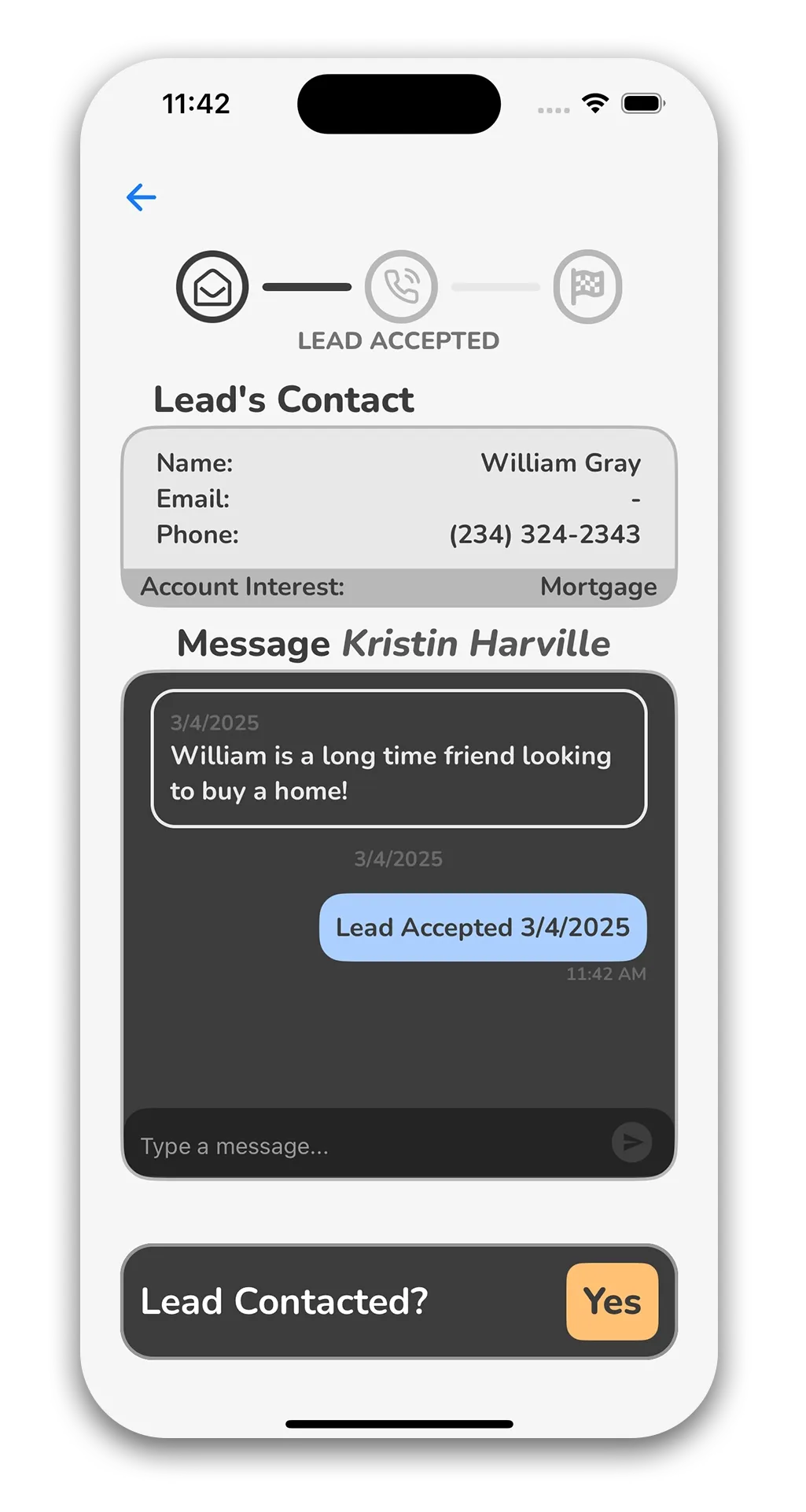
In the Lead Detail screen, Producers would use the status bar at the bottom to update the lead’s status. Note, Leadgen Users will not be able to see the status Bar
In the screenshot, the lead has been accepted by the producer but not yet contacted.
Once the producer contacts the lead, they would tap the “Yes” button to update the lead’s Status and notify the lead generator. If the producer needs more information, they can send a message using the chat component.
For detailed instructions on closing a lead, refer to page 10.